+1 (281) 855-2218

Why Are Interactive Screens Important for Businesses?

Business customers encounter a brand in brief, practical moments. They search for directions, compare products, book appointments, or wait for service. A touchscreen beside a shop entrance can answer a question before an employee is free. A meeting-room display can show availability without another email. These small interactions shape how a business feels. They can also reveal where its service is confusing.

Industry research helps explain why those moments matter. PwC’s 2018 Future of Customer Experience survey found that 32% of consumers would stop doing business with a brand they loved after one bad experience. Salesforce’s 2022 State of the Connected Customer report found that 88% of customers considered a company’s experience as important as its products or services. Neither report proves that a screen alone improves customer experience. It does show why convenient, clear interactions deserve attention. This is where Interactive Screens can help: they give people a direct way to find information, complete simple tasks, and engage with services. The details matter. A readable interface, responsive touch controls, and current content can make a screen genuinely useful. A slow menu cannot.

Screens are not a cure-all. Poor placement, inaccessible design, or neglected software can create friction instead. Businesses should connect each display to a real customer need, then review how people use it. Some visitors will still prefer a person. That is worth remembering. Done thoughtfully, interactive displays can support staff, simplify everyday journeys, and make services easier to navigate—without pretending technology solves every problem.
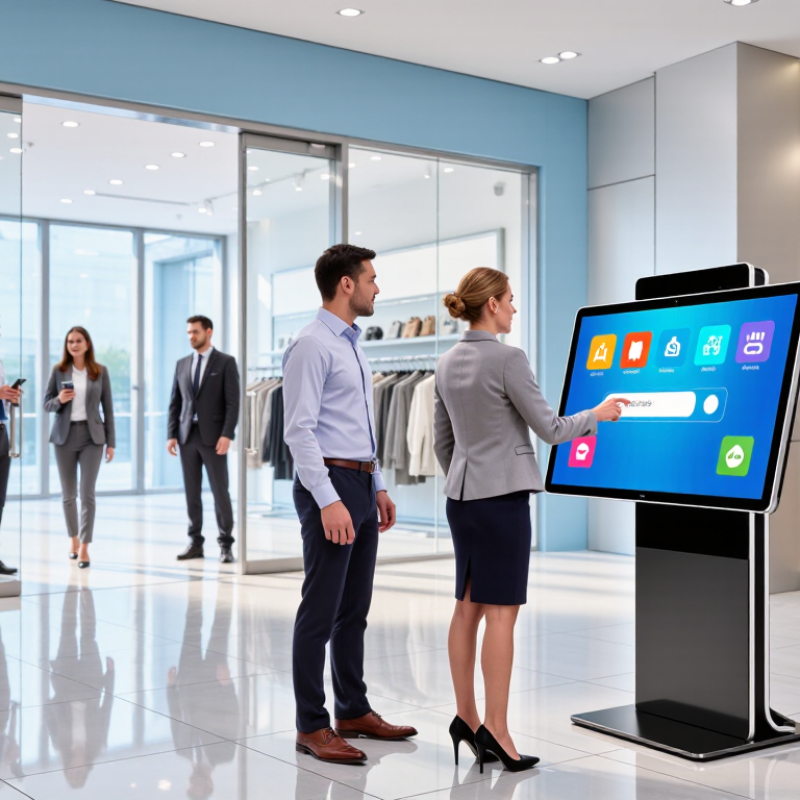
Why Are Interactive Screens Important for Businesses?

What Interactive Screens Are and How They Work

Interactive screens combine a display, touch-sensitive surface, computing unit, and software. A customer can tap a menu, zoom a map, or submit a form directly on the screen. Unlike a television, the screen responds to input. Capacitive panels detect changes in electrical charge; infrared systems register interruptions in an invisible light grid. Each method suits different settings, so choosing one without considering lighting, gloves, or frequent cleaning can create problems.

Behind the glass, software interprets each touch and sends it to an application. A network connection can update prices, schedules, or product information across several screens. In a shop, for example, a shopper might filter a wall-mounted product catalog, then check stock. The setup needs accessible content, secure network controls, and regular testing. Touchscreens can also frustrate people when buttons are too small or responses feel slow. MarketsandMarkets estimated the global interactive display market at $42.3 billion in 2023, projecting $65.3 billion by 2028 in its 2023 report. That forecast signals investment, not guaranteed results for every business.

Tips: Put key actions within easy reach. Test the screen under real lighting, with real users, before installation. Keep a non-touch option available; touch is not always the easiest way to get information.

Key Types of Interactive Screens Used in Business

Interactive screens serve different business needs, so the right type depends on what people need to do. Self-service kiosks let visitors check in, browse services, or update an order without waiting for staff. Clear prompts and large touch targets matter, especially in busy lobbies. A confusing screen can create a queue instead of reducing one.

In meeting rooms, interactive whiteboards support shared notes, diagrams, and live edits. Teams can mark up a floor plan or move ideas across a digital canvas. These displays work best when the interface is simple and the screen is easy to see from the back of the room. Small details matter. A lagging stylus can interrupt a discussion, even if the display looks impressive.

Retail and service businesses also use touch-enabled product displays and interactive wayfinding screens. Customers might compare product features, check stock, or find a department without asking for help. Some screens combine touch controls with digital signage, though not every message needs an interactive feature. Screen height, glare, and cleaning routines deserve attention too. These practical choices are easy to overlook, and sometimes the most polished setup still feels awkward to use.

Why Interactive Screens Matter in Business

Interactive screens let people engage directly with information—supporting collaboration, presentations, self-service, and hands-on product exploration. Common business formats include touch displays, interactive whiteboards, self-service kiosks, and interactive video walls.

Pixels per frame in common display resolutions

Pixel counts are calculated from each resolution’s width × height. Higher resolution provides more pixels for displaying detailed content; it does not determine a screen’s interactive features.

How Interactive Screens Improve Customer Engagement

Interactive screens give customers a direct way to explore products instead of waiting for an employee to explain every option. A shopper can tap a product image, compare sizes, or check whether an item is available nearby. Clear choices make the interaction feel useful, not merely flashy. Keep it simple. Large buttons, readable text, and familiar gestures help people move through a screen without hesitation.

Placement and timing matter. A screen near a fitting-room entrance might show care instructions or suggest matching items, while a display beside a service counter could let visitors browse answers during a short wait. Use concise prompts and show the next step clearly. When a customer pauses, the interface should offer guidance rather than repeat an aggressive prompt. That detail is easy to overlook. I would not assume that every visitor wants to interact; some prefer a quick conversation or a printed sign.

Businesses can learn from basic, privacy-conscious interaction data, such as which pages people open or where they commonly stop. These signals can help staff revise confusing menus and remove content that customers rarely use. They do not explain every choice, though. A screen can attract attention and still frustrate people if it loads slowly, sits at the wrong height, or offers outdated information. Test it with real visitors, watch where they hesitate, and make improvements based on what they actually do.

Why Are Interactive Screens Important for Businesses? — How Interactive Screens Improve Customer Engagement

Interactive screens let customers explore information and complete selected tasks at their own pace. The table below connects common screen features with customer-facing benefits and practical ways to measure their use.

Engagement Dimension Interactive Screen Feature How It Helps Customers Practical Measure Implementation Consideration
Product discovery Searchable catalogs, product filters, and category navigation Customers can browse relevant options without having to review every item or wait for assistance. Searches, filter use, product-detail views, and exits from the catalog Use clear category names and keep the path back to the main menu easy to find.
Self-service information Interactive FAQs, service directories, and step-by-step guides Customers can find answers and instructions independently, which can reduce avoidable questions for staff. Guide starts and completions, topic selections, and requests for staff assistance Keep information current and provide an obvious route to human help when needed.
Personalized exploration Choice-based recommendations, comparison tools, and preference selectors Customers can narrow options according to their stated needs and compare relevant details. Comparison-tool use, selected preferences, and interactions with recommended items Explain how selections are used and avoid collecting personal information that is not needed.
Wayfinding Interactive maps, location search, and route guidance Customers can locate destinations and view directions that match their selected destination. Destination searches, route requests, and repeated searches for the same location Keep maps and location details aligned with the current layout of the space.
Transactions and check-in Appointment check-in, queue registration, and guided ordering workflows Customers can enter required details and complete supported steps directly at the screen. Workflow starts, successful completions, abandoned sessions, and requests for assistance Show progress, confirm completed actions, and offer a clear alternative if the screen is unavailable.
Customer feedback Short surveys, rating prompts, and structured feedback forms Customers have a convenient way to share feedback close to the service experience. Survey starts, submissions, skipped questions, and response themes Keep questions concise, make participation optional, and explain how feedback will be used.
Accessibility and ease of use Readable text, clear instructions, accessible controls, and alternative ways to complete tasks More customers can understand the interface and use its core functions, including people with different access needs. Task completion, errors, time to complete tasks, and accessibility testing feedback Test with diverse users and provide non-screen alternatives where touch interaction is unsuitable.

Measurement note: Interaction counts describe screen usage; they do not by themselves prove increased sales or satisfaction. Compare results over time and alongside customer feedback and relevant business outcomes.

Business Operations and Communication Benefits

Interactive screens help teams share information where work happens. In a meeting room, staff can mark up a floor plan, compare figures, and save notes while everyone watches. This can reduce the back-and-forth of emailing separate files. On a shop floor, a shared screen can display task updates or process diagrams, helping colleagues spot changes sooner. The benefit depends on clear content and reliable access; a screen alone will not fix confusing communication.

Tips: Use large text and simple layouts. Test touch controls before meetings. Keep a non-digital copy of essential instructions in case the display or network fails.

For business operations, interactive displays can support training, planning, and collaborative problem-solving. A new employee might follow a visual checklist, while a project team can move tasks across a shared board. These small interactions make it easier to ask questions and correct misunderstandings in real time. Still, teams need agreed rules for file access, updates, and screen use. Otherwise, duplicate versions can create more confusion than paper did. I have seen a useful discussion stall because nobody knew which saved copy was current. Clear ownership matters as much as the hardware.

Factors to Consider When Adopting Interactive Screens

An interactive screen should solve a clear business problem, not simply make a space look modern. Decide what people need to do: browse a menu, check in, explore product details, or collaborate on a presentation. The task shapes the screen size, software, and placement. Be specific. “Improve engagement” is difficult to measure; tracking completed bookings or reduced queue times is more useful.

Consider the room before choosing hardware. A bright shop window may need a high-brightness display, while a meeting room needs comfortable viewing from every seat. Check viewing height, glare, reach, and wheelchair access. Test the interface with the people who will use it. Small buttons can frustrate someone in a hurry. So can a slow response. A short trial often reveals these problems.

Plan for daily operation, too. Who updates the content? How will the screen connect to existing systems, and what happens if the network drops? Set a maintenance schedule and budget for repairs, cleaning, and software support. A pilot in one location can expose hidden costs before a wider rollout. Still, pilots do not predict every busy-day problem. That assumption can be wrong. Observe actual use, ask staff what interrupts their work, and adjust the setup before expanding.

SHOP BY BRAND