Main Menu
Choosing a Touch Screen display for business means looking beyond a bright panel and a persuasive product photo. A meeting-room screen must respond reliably to quick gestures, while a retail kiosk needs durable glass and straightforward maintenance. In classrooms and shared workspaces, glare, viewing angles, mounting options, and compatibility can matter as much as screen size. Small details count.
Touchscreen pioneer Jeff Han described the appeal of direct interaction this way: “The basic idea is that you can use your fingers to manipulate the content on the screen.” His observation, shared in his TED presentation on multi-touch interfaces, captures a key business advantage: people can work with on-screen information naturally, without always reaching for a mouse or keyboard. Still, intuitive interaction alone does not make a display right for every workplace.
This guide to the 10 best Touch Screen displays for business buyers compares practical considerations, including display clarity, touch responsiveness, connectivity, operating-system support, installation, and vendor service. We also consider how different models fit conference rooms, point-of-sale counters, training spaces, and digital signage. The best choice depends on the job. A large interactive screen may impress in a boardroom but waste space at a reception desk. No shortlist can replace checking compatibility and support terms before purchase; those details are easy to overlook, and they can shape the experience long after installation.
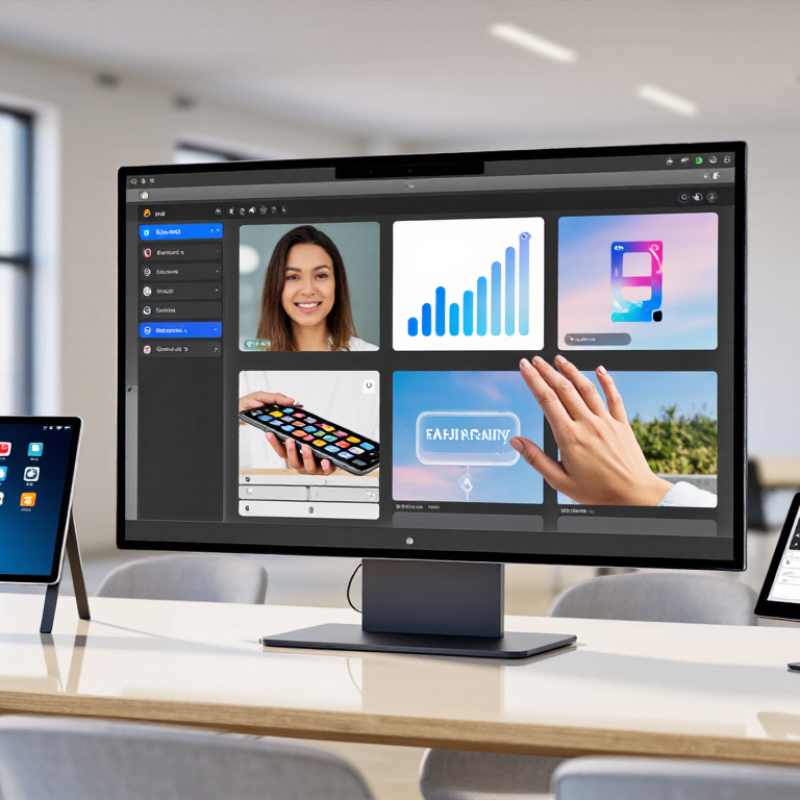
Touch-screen displays give shared workstations a direct route into everyday tasks. Staff can tap through check-in, update stock, annotate floor plans, or confirm a dispatch. On a warehouse kiosk, a clear maintenance checklist can sit beside the machine it refers to. In a meeting room, teams can mark a delivery route together. The value depends on software, screen placement, glare control, and cleaning routines—not size alone.
The 2023 Work Trend Index reported that 68% of surveyed workers lacked enough uninterrupted focus time. A touch interface will not fix workload pressure, but it may reduce small handoffs when linked to scheduling or inventory systems. Grand View Research estimated the interactive display market at $39.2 billion in 2022, projecting 8.2% annual growth through 2030. That signals investment, not proven productivity gains. Small gains matter.
Buyers should test the actual workflow before purchasing: Can an employee use the screen while wearing work gloves? Does text remain readable under ceiling lights? Can the system recover quickly after a network interruption? A poorly placed display can slow a task instead of streamlining it. The less glamorous details—mounting height, response time, and staff training—often decide whether people use the screen or walk past it.
A business touch display should match the room, software, and people using it. Measure the room. Check viewing distance, seating positions, and whether users will stand or sit. A large panel may feel generous, but it can be awkward in a narrow meeting space. For bright rooms, compare brightness and anti-glare performance under actual lighting; showroom conditions can be misleading.
Touch accuracy matters during ordinary tasks, not just a quick product demo. Test writing, dragging, and selecting small on-screen controls with the devices your team already uses. Confirm whether the display supports the operating system and conferencing tools you need. Check available ports, wireless options, and the effort required to connect a laptop. Smooth interaction is useful. So is simple setup.
Consider resolution, panel size, and how text appears from the back of the room. For shared work, multi-touch support can help several users annotate a plan, though crowded interaction may still feel clumsy. Review the glass surface, cleaning guidance, operating temperature, and expected daily usage. These details affect maintenance, especially in classrooms and reception areas. Ask about warranty coverage, service access, and replacement parts before purchase. A display with more features is not automatically the better value; some options may go unused, while a modest difference in usability can matter every day.
Commercial touch displays rely on different sensing methods, and the right choice depends on how people use them. Projected capacitive technology supports responsive, multi-touch gestures through glass, making it common in meeting rooms and self-service kiosks. Infrared systems detect interrupted light beams around the screen, so they can work with gloved hands and larger display surfaces. Resistive touch responds to pressure, but its softer surface may wear faster in busy settings. Small detail. Dust, direct sunlight, and frequent cleaning can also affect the experience.
Display type matters just as much. LCD panels with LED backlights are widely used for signage and office collaboration because they balance brightness, availability, and cost. Direct-view LED suits large-format installations viewed from a distance, while OLED can deliver deep blacks for controlled indoor spaces. MarketsandMarkets estimated the interactive display market at $29.9 billion in 2023, forecasting $45.3 billion by 2028, a 8.7% compound annual growth rate. That forecast signals commercial interest, not a guarantee of better performance for every buyer. It is easy to overvalue resolution and overlook glare, mounting height, or service access. A screen that looks impressive in a showroom may feel tiring under ceiling lights after a full shift.
Business buyers need touch displays that fit real work, not just impressive specification sheets. The right choice depends on room size, daily tasks, and how many people will use the screen. Check touch accuracy, connection options, brightness, and mounting before comparing prices. A sunlit reception desk needs a brighter panel than a dim meeting room. Small details matter.
Ten leading options cover distinct settings: compact desktop panels for check-in desks, large meeting-room screens, and interactive whiteboards for shared planning. Portable touch monitors suit mobile teams, while kiosk-ready displays support self-service stations. Countertop point-of-sale screens prioritize quick taps and easy cleaning. Wall-mounted signage, high-brightness window displays, rugged industrial panels, and multi-user collaboration screens round out the field. Each type solves a different problem.
In a product evaluation, test the screen with the software and gloves, if staff wear them. Tap small buttons near the edges and check whether the display responds consistently. Ask about warranty terms, service access, and replacement parts; downtime can cost more than a modest price difference. A stand that looks sturdy may still wobble during fast input. I would not assume every “multi-touch” panel handles crowded group work equally well. Compare the actual viewing angle and touch response in the room where it will be installed.
Compare business touch displays by the work they must support, not by screen size alone. A 55-inch panel may suit a small meeting room, while a bright lobby needs stronger visibility under overhead lights. Check resolution, touch accuracy, viewing angle, and the number of people who will use the screen at once. Test common tasks, such as annotating a document or dragging a chart, before choosing. Smooth response matters. Review available ports, wireless options, warranty terms, and expected service life. A low purchase price can be misleading if replacement parts or support are difficult to obtain.
Plan installation around the room. Measure doorways and wall space, confirm the mount can carry the display’s weight, and keep power and network connections accessible. Position the screen to reduce glare; even a slight angle can help. Calibrate touch input after mounting, then test it from each usual standing or seated position. Some setups still need a second adjustment. That is easy to overlook. For maintenance, power down the display before cleaning it with a soft, lightly dampened cloth. Avoid spraying liquid directly onto the panel. Check cables and mounting points periodically, and record software updates so staff can spot changes in performance. A simple log is useful, though it may feel fussy until a fault appears.
Office: (281) 855-2218
Copyright © 2025 Telco Intercontinental Corp. All rights reserved. Privacy Policy | Legal Disclaimer
Telco®, TelcoMotion®, and TelcoGreen® are registered trademarks of Telco Intercontinental Corp.